When you purchase a data disk, you need to format it before you can use it. Users who have not purchased data disks can skip this step. CentOS is taken as an example to illustrate.
Note: Only data disks can be partitioned, not system disks. If you forcibly partition the system disk, which may cause serious problems such as system crash, Tencent Cloud will not be liable for compensation.
1) Log in to the Linux ECS through the method described in step 4.
2) Enter command fdisk -l Check your data disk information. Note: Before partitioning and formatting the data disk, use df -h The command cannot see the data disk. In the following example, a 54 GB data disk (/vdb) needs to be mounted.
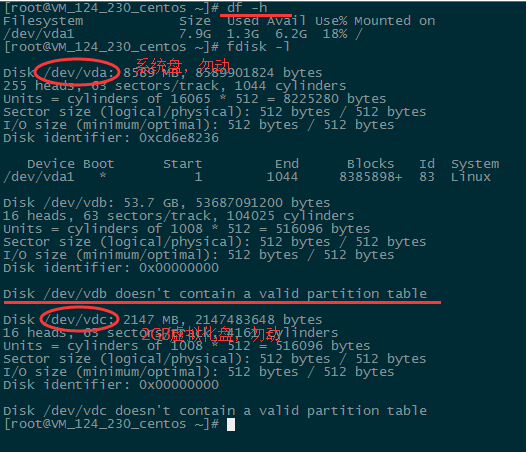
3) Execute the following command to partition the data disk.
fdisk /dev/vdb
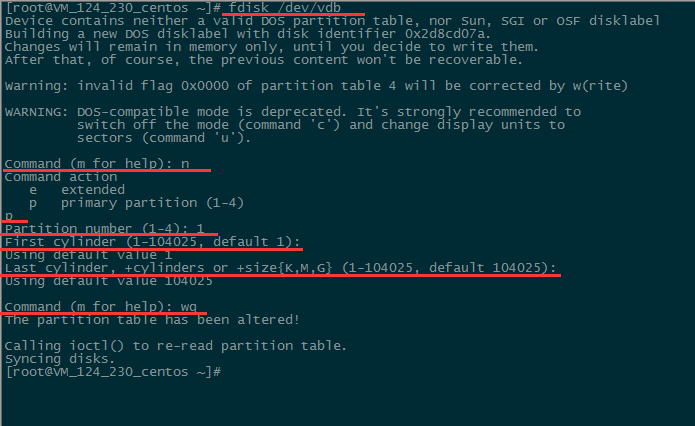
As prompted by the interface, enter "n" (new partition), "p" (new extended partition), "1" (the first primary partition), enter twice (using the default configuration), enter "wq" (save partition table), and enter to start partitioning.
Here is an example of creating one partition. Developers can also create multiple partitions according to their own needs.
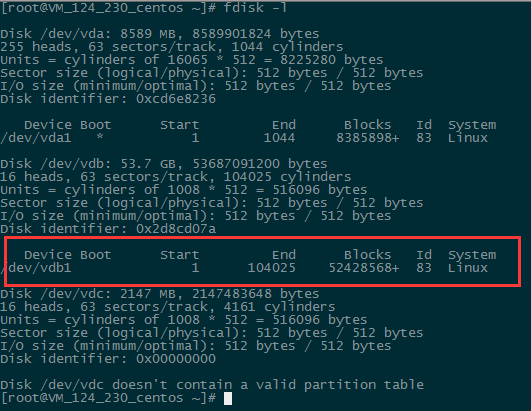
Use the "fdisk - l" command to see that the new partition vdb1 has been created.
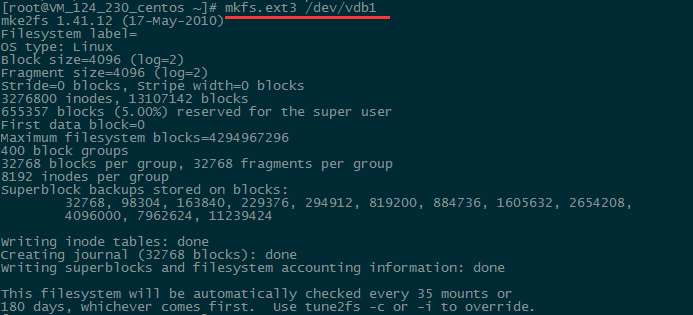
5) After partitioning, you need to format the partition. You can decide the file system format, such as ext2, ext3, etc. Take "ext3" as an example:
Use the following command to format the new partition.
mkfs.ext3 /dev/vdb1
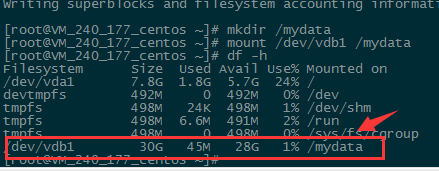
6) Use the following command to create the mydata directory and mount the partition in the directory:
mkdir /mydata mount /dev/vdb1 /mydata
Finally, use the following command to view
df - h
The information as shown in the figure shows that the mount is successful, and the data disk can be viewed.
7) If you want the ECS to automatically mount the data disk when it is restarted or powered on, you must add the partition information to/etc/fstab. If it is not added, the data disk cannot be automatically attached after the ECS is restarted or restarted.
Use the following command to add partition information:
echo '/dev/vdb1 /mydata ext3 defaults 0 0' >> /etc/fstab
Use the following command to view
cat /etc/fstab
The message as shown in the figure shows that the partition information is added successfully.

Statement: All articles on this site, unless otherwise specified or marked, are originally published on this site. No individual or organization is allowed to copy, embezzle, collect and publish the content of this website to any website, book and other media platforms without the consent of this website. If the content of this website infringes upon the legitimate rights and interests of the original author, please contact us for handling.


